Show-day operations
How TripPass runs on show day — from setup to follow-up.
This is the practical runbook we use with organizers: what to prepare before the doors open, how attendees check in, the experience they get, and the connectivity checklist that keeps the show working when the venue network does not.
Pre-show setup
Most shows already have everything TripPass needs. We import your existing materials, normalize them, and give you a preview to review before the public link goes live.
Step 1
Send your show data
Step 2
Upload the floor plan
Step 3
Review and brand
- Confirm exhibitor list, booth numbers and categories
- Import and map schedule sessions with times, rooms and descriptions
- Upload the printed floor plan and verify booth placements
- Add restrooms, food, entrances, information desk and seminar areas
- Set branding, event hours and organizer contact information
- Generate the QR kit for entrance posters, counter cards and exhibitor handouts
- Run a pre-show preview on a phone with the actual public link
Attendee check-in
The first load is the only one that needs a strong signal. After that, the guide lives on the phone.
Before the show
Promote the link
At the door
Scan once at the entrance
On the floor
Aisle-end and exhibitor cards
QR placement checklist
- Main entrance poster, eye height, not behind glass
- Box office / will-call counter cards
- Information desk tent card
- Seminar area sign pointing at the schedule
- Aisle-end signs on main traffic routes
- One counter card per exhibiting booth
- Program insert on page one or inside cover
- Social and email graphics using the same code
Attendee demo flow
This is what an attendee sees after scanning the QR code. No account, no download, no training.
Open
QR code loads the branded show guide instantly in the browser.
Ask Margo
Attendees ask in plain language: "Who sells composite decking?"
Search
Product and service search, not just company names.
Map
Open the floor plan and booth location. Interactive highlighting is Pilot.
Save
Add exhibitors, sessions and offers to My Show.
Request info
Consent-based lead to the exhibitor with interest context.
Schedule
See what's happening now and what's next.
Return
Saved plan, exhibitor details and requested info stay on the phone.
- Attendee scans the entrance QR code with their phone camera
- Show home loads with branded hero, hours and six action tiles
- Attendee asks Margo a real product question
- Search results show booth numbers and categories
- Floor plan and booth location open for the selected exhibitor
- Attendee saves a booth and a seminar to My Show
- Attendee submits an information request to a named exhibitor
- Exhibitor sees the consented lead in their private list after the server confirms it
Connectivity checklist
Run this on the actual show floor, with the actual phones attendees will use. It takes about 15 minutes and should be repeated each morning.
Pass 1
Cellular
Pass 2
Venue Wi-Fi
Pass 3
Offline / dead zones
Show-floor connectivity record
Record dead zones found: ________________________________________
Adding Wi-Fi to your venue
Many halls, armories and fairgrounds have no usable public internet. TripPass loads over cellular, but a simple guest network makes the first scan faster for everyone. Three practical options:
- 1. Venue network. Ask facilities for the guest SSID and confirm whether a captive login portal is in place. Portals are the most common failure point — request it be disabled for show days, or post the login steps at the entrance.
- 2. Temporary event Wi-Fi. Order a show-floor drop from the venue's internet provider. Ask for wired uplink plus access points near the entrance, registration and the seminar stage.
- 3. Cellular hotspots. Two or three carrier hotspots at registration cover the entry rush. Put one on a different carrier than the others so a single dead carrier does not take out check-in.
Post the network name and password on the station signage next to the QR code, and run the three connectivity passes above on the actual guest network before doors open.
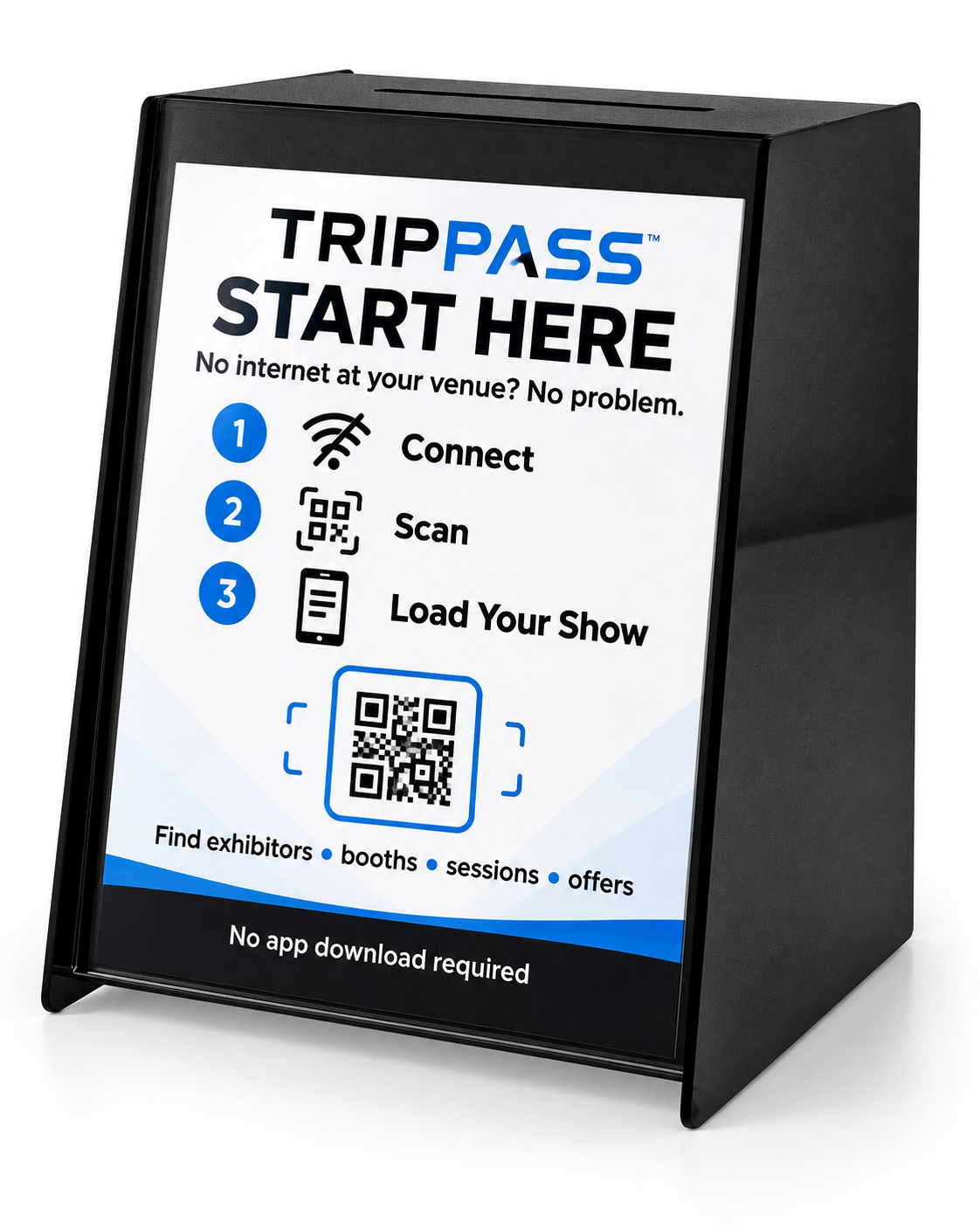
The tidiest way to do all of this is the TripPass Connect Station — one station at the entrance holding the event hotspot and the printed sign with your Wi-Fi details and event QR code.
Show-day monitoring
The organizer portal updates live. Check it hourly during the show so small issues do not become floor-wide problems.
Watch
- Attendee loads, searches and saves
- Information requests and lead delivery status
- Top searches and unanswered questions
- Seminars and show specials performance
- Sponsor placements and impressions
Fix live
- Booth moved → edit the exhibitor and verify its floor-plan placement
- Seminar cancelled → mark it changed, badge updates instantly
- Exhibitor no-show → mark inactive, drops from search and map
- Margo misses a question → add a synonym or answer in the knowledge builder
- Feature broken → switch it off, the rest of the guide stays up
Post-show closeout
The show ends, but the value does not. Close out within 24 hours while the data is still useful.
- Confirm every lead delivered; retry anything pending
- Freeze the final report so numbers stop moving
- Export organizer report: top searches, categories, exhibitors and unanswered questions
- Export each exhibitor's consented lead list with interest context
- Send attendee recap to opted-in visitors (requires a configured sending domain)
- Book next year's show and clone the event structure
- Archive the show once all reports are delivered
Questions
About running a show on TripPass.
What does TripPass need from us before the show?
Your exhibitor spreadsheet, the seminar or demonstration schedule, the floor plan you already print, and your show branding. TripPass imports the columns, matches the data, and gives you a preview to review before anything goes live.
Do attendees need to download an app or create an account?
No. Attendees scan a QR code or click a link and the guide opens in their phone browser. They can browse exhibitors, the schedule, the map and show specials without registering or installing anything.
What happens if the venue Wi-Fi is weak or overloaded?
TripPass is designed for spotty show-floor connectivity. After the first load, the exhibitor directory, sessions and My Show stay available on the phone. Saves queue locally and sync when signal returns. Floor-plan fallback and queued information requests are still being validated.
How do exhibitors capture leads without badge scanners?
An attendee scans the booth's QR code or the exhibitor scans the attendee's code. The visitor chooses what to share and whether they want follow-up, and the lead lands in that exhibitor's own private list.
Can we make changes during the show?
Yes. Booth moves, cancelled seminars, new show specials and knowledge gaps can all be edited live from the organizer portal. Changes appear immediately without republishing or updating the app.
Does this replace our registration or ticketing system?
No. TripPass is the attendee discovery and engagement layer. Registration, ticketing, badge printing and accounting stay in the systems you already use.
Get the runbook for your show.
Send your exhibitor list and schedule. We'll build a working preview from your real show data so you can walk the floor before you decide.